Formatting Regions
We'll cover here the formatting of font sizes and colors for text and math regions. The same applies to both kinds of regions, so we'll demonstrate it on a text region only.
First, let's insert a text region: choose it from the menu, or press ".
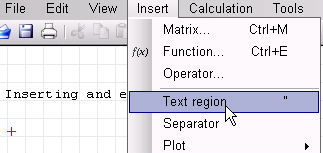
The cursor will change:
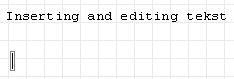
Start typing:
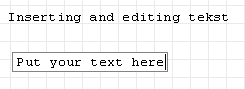
If you want to continue on the next line, press CTRL+ENTER or SHIFT+ENTER. When finished, press ENTER or click outside the region.
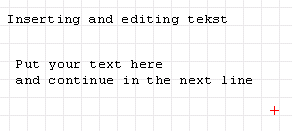
Select the region and choose the font size tool. Change the font size and exit the selected region. The font size will not remain for subsequent regions (regardless of what the font size tool is showing). The default font size is set by choosing a font size without first selecting any region.
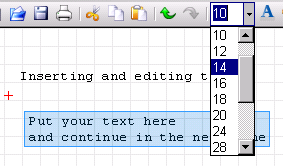
You can change the color of the text; choose the appropriate tool:

You will get the standard color palette. Choose from the "Basic colors" or "Define custom colors >>".
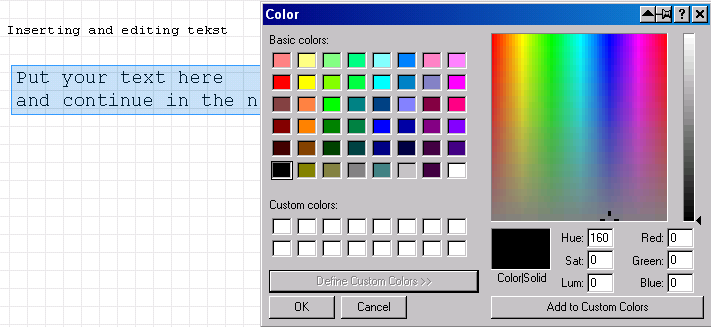
Let's choose a basic color — say, one of the greens offered.
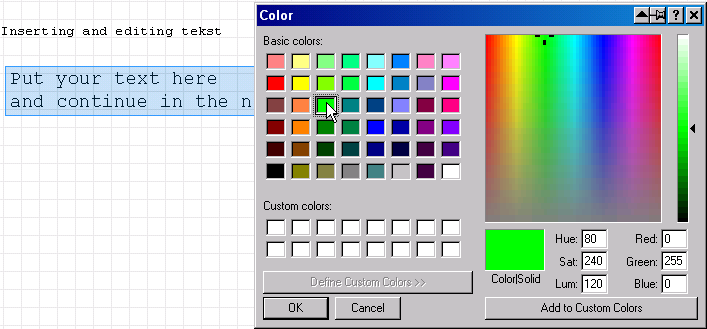
Choosing OK will change the text color. Again, the default color is set the same way, by choosing a color without first selecting any region.
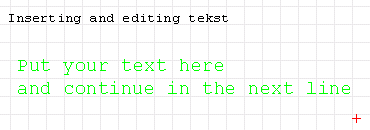
The procedure for changing the background color is similar — just choose the appropriate tool:
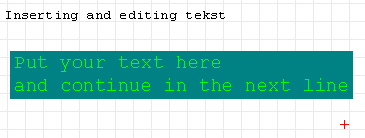
The result is shown in the next picture.
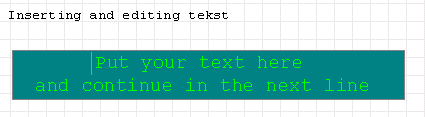
After that, you can edit the text or, say, make the colored box wider (by adding some extra blank spaces).
Note: you can change the font size or colors of more than one text (or math) region at the same time — just select the multiple regions and apply the formatting.
This page is based on a legacy wiki article by Radovan Omorjan.