License Obtaining Challenges
To operate the SMath Studio program, you must obtain a license either from the Root Licensing Server or from the Local Licensing Server. It is important to understand you need a license even if you are using free version of SMath Studio. While obtaining a license, you may encounter one of the following challenges:
Error message: Local licensing server configuration mismatch detected
This error means that the IP address and port combination configured on the Local Licensing Server for obtaining licenses does not match the IP address and port combination that SMath Studio is actually using to reach the server during activation.
What to check:
- Which IP address and port are configured on the Local Licensing Server?
- Which IP address and port does SMath Studio use to activate? If you use a domain name during activation, make sure it resolves to the correct IP address (run
ping your.domain.namein a terminal to check).
The IP address and port should match after these checks. For more details on Local Licensing Server requirements, see Local Licensing Server.
If you find a mismatch, fix it as follows:
- Change the setting on the Local Licensing Server: update the License Server Network Address field on the Licenses page so it matches reality (i.e., exactly matches the address that will be used when obtaining a license from the computer where SMath Studio is installed), then click Reload Licenses.
- When activating the program, use the IP address and port combination previously entered in the licensing server settings. It's possible the domain name you specified resolves to an incorrect IP address on your local network, or an incorrect port is specified (for example, HTTPS should be used instead of HTTP).
Error message: Digital signature of the license contents has expired
If during the process of obtaining a license the SMath Studio displays the following message: "Digital signature of the license contents has expired" - this can only mean that the time between the computer acting as a server and the computer on which the copy of SMath Studio is installed does not match.
Diagnostics
To diagnose this challenge you need to run the following commands in your command shell:
-
For Linux: command date in your terminal:

-
For Windows: commands date and time via command prompt or PowerShell:
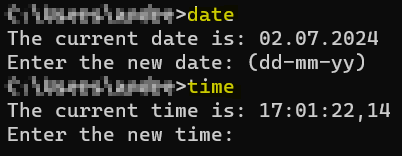
Important Note: if you are using Local Licensing Server you need perform the same actions on the computer where the server is hosted! Your server time should match what you see on the computer where SMath Studio is installed.
Compare the results of running the commands on your server (if you have a Local Licensing Server installed) and client (where the problem with the SMath Studio software was detected) machines, and make sure that this time corresponds to the correct time in your region.
We strongly recommend having a time server in your network, keeping your machines system time synchronized automatically. This will let you avoid any errors, caused by wrong system time configured.
Error message: Could not establish connection to the server
If, after updating the server to version 5.1, SMath Studio displays the following message while obtaining a license: "Could not establish connection to the server. Please try again later." — this may mean you loaded an Offline license package that was obtained for an earlier server version.
Solution
Obtain a new Offline license package for the new server version. You can do this yourself, using the instructions provided together with the SMath licensing server image.
Error message: Unable to obtain a license from the server
If, after filling in the fields of the Activation dialog in SMath Studio, you experience a license-obtaining error or a problem connecting to the server, you can check the logging records.
Diagnostics
Follow these steps:
- Close SMath Studio;
- Navigate to the program's installation folder (typically
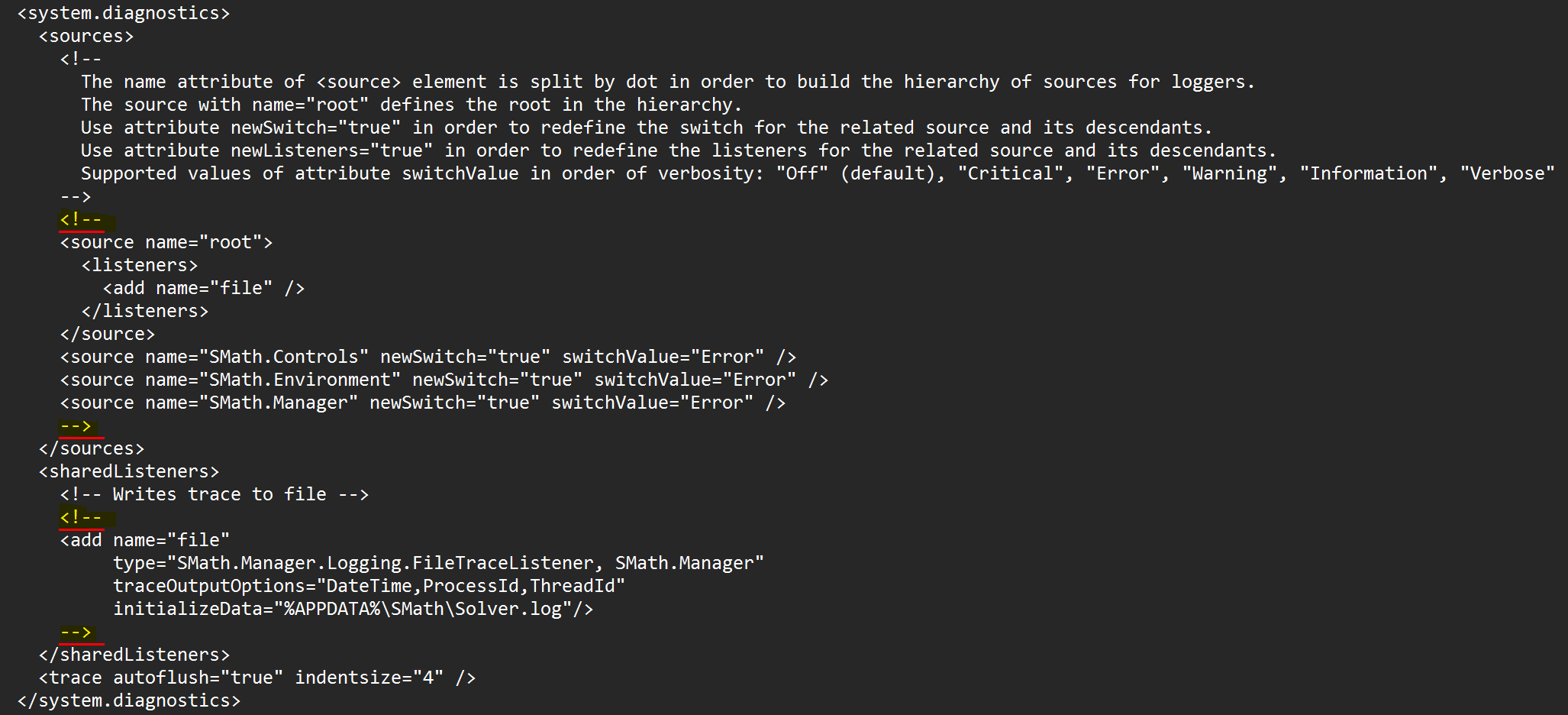
C:\Program Files (x86)\SMath Studio Enterprise); - Open the file Solver.exe.config for editing (note that the OS may require administrator permissions to save changes to this file — it is enough to open your text editor as administrator and then open the file from there);
-
In the Solver.exe.config file, delete the lines marked on the image below:
-
Save the Solver.exe.config file.
- Open SMath Studio, repeat the activation attempt (make sure the error is still the same), then close the program;
- Navigate to the
%AppData%\SMathfolder; - Open the text file Solver.log, where you can see the logging records for the activation process.
Note: this is an older, scenario-specific logging setup. For general guidance on enabling logging in SMath Studio, see Enabling Logging in SMath Studio.
We recommend sending the file (or its relevant section) to your software vendor for analysis.
Error message: The program keeps losing connection to the server
If you experience periodic connection loss to the server while working with SMath Studio, this may indicate an unstable network connection within your organization's local network.
Diagnostics
-
In a command prompt, run:
-
Without closing the window running the command, continue working with SMath Studio as usual;
- As soon as the connection to the server drops (SMath Studio will open a corresponding dialog box), check the results of the server ping in the previously opened command prompt window;
- Share the connection issue data with your network administrator.