Units
SMath Studio can handle units; there's a large list of built-in units available for the most common applications, which can be easily extended by the user.
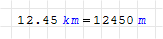
Units are represented with an italic blue-colored font.
Insert a unit
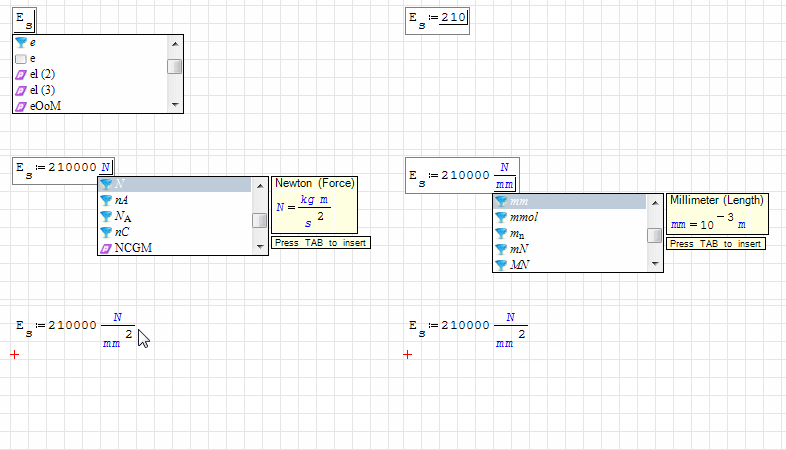
To insert a unit, press the apostrophe (') and then type the unit name; the placeholder shape will change, and the dynamic assistance box can help you by showing the built-in units (mouse double-click, or press the TAB key, to insert the selected unit into the formula).
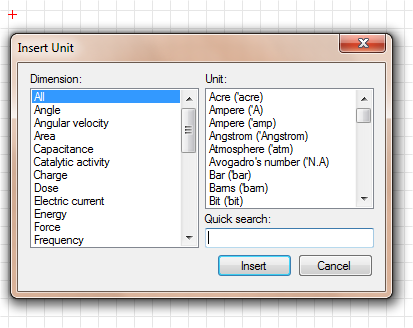
Alternatively, you can add a built-in unit through the units window (CTRL+W or menu Insert > Unit...), where you can easily find the unit by name or by family.
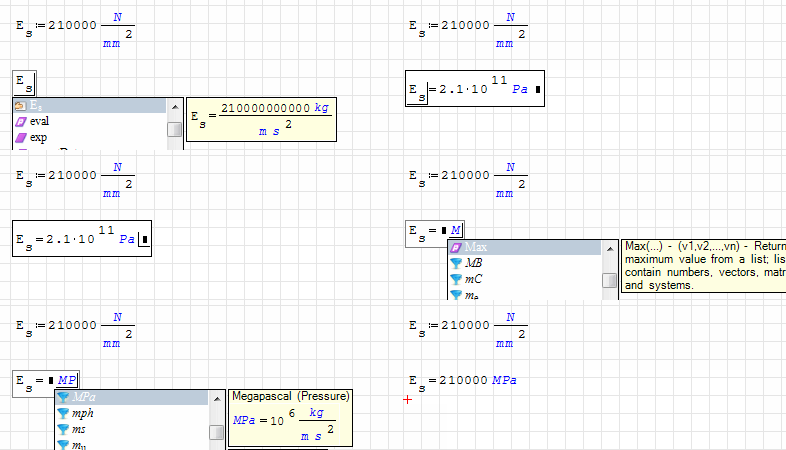
When evaluating an expression that contains units, the output is delivered in the default units (SI base units); to change the output unit, write your preferred unit in the right-hand placeholder.
Note: the multiplication sign for units is hidden by default, so units like kN*m are shown as kN m; to avoid errors, the correct way to type the unit is 'kN*'m, not 'kNm.
Custom units
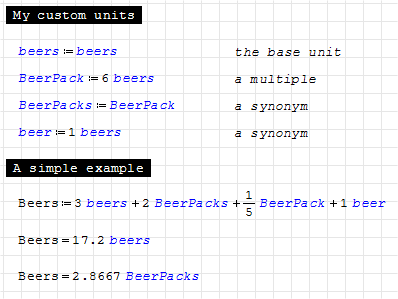
You may define or override a unit inside the sheet (the simplest way), or by editing the Units.xml file (update).
Units language
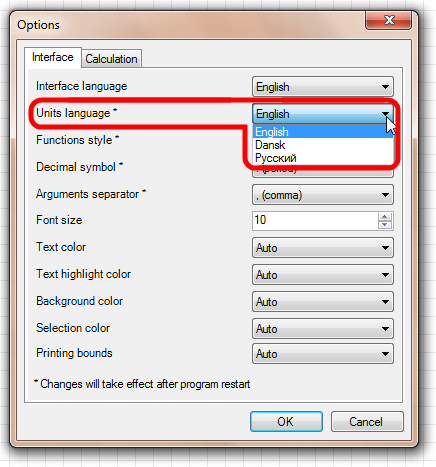
From the menu Tools > Options... you can change the units language.
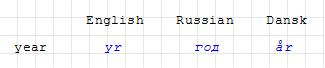
The unit localization changes the way the unit of measurement is written.
Units description
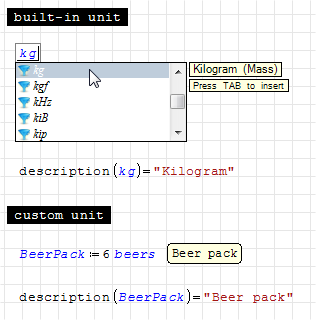
Both built-in and custom unit descriptions can be retrieved as a string using the description() function; the description's language depends on the interface language.
Known issues
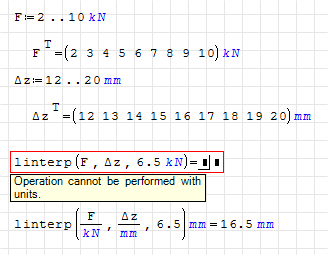
Not all built-in functions work with units; to work with these functions, divide the argument by the expected unit and multiply the result by the same unit.
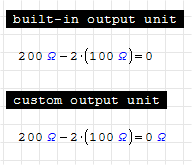
The value 0 has no units. If you want a unit in the output even when the result can be null, set the unit in the right-hand placeholder.
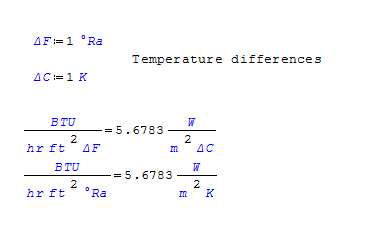
Be careful when handling relative and absolute temperature units; there's an open discussion here.
This page is based on a legacy wiki article by Davide Carpi.