Installing SMath Studio Enterprise
How to install SMath Studio Enterprise on a workstation. Choose the method that fits your platform; then connect it to a licensing server.
Windows
Run the MSI installer. During installation you review the user agreement, choose the installation folder and the user the program is installed for, and set a few other options.
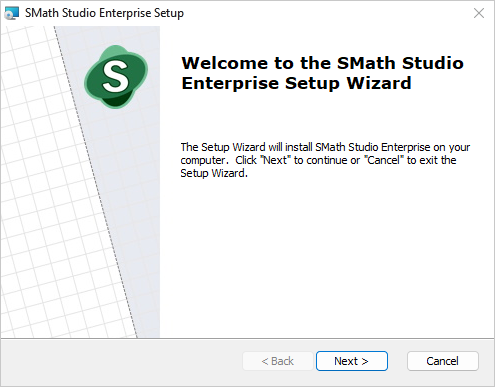
For a silent installation without any user interface, run the installer from the command line:
Without installation, SMath Studio runs straight from the application archive: extract it and start Solver.exe.
To make that copy portable, create an empty file named portable.version next to the extracted files and folders. In portable mode SMath Studio leaves no traces in the system: all settings and add-ons are kept in the program folder, which can live on an external drive or a network share.
Linux
AppImage
On many distributions the simplest way is the AppImage package. Download it, allow it to execute — in the file properties, or with chmod +x *.AppImage — and run it from the file manager or with ./*.AppImage.
Mono
Alternatively, run SMath Studio with the Mono runtime:
- Install Mono with your distribution's package manager — on Debian and Ubuntu:
- Download the application archive and extract it.
- Start the program from the extracted folder:
mono Solver.exe.
Wine
On distributions where Mono has compatibility issues, use Wine:
- Download the application archive and extract it.
- Install Wine and Winetricks.
- Run
winetricks, choose Select the default wineprefix and click OK. - Choose Run an arbitrary executable (.exe/.msi/.msu), click OK and select
Solver.exein the extracted folder.
Next steps
- Launch modes — with or without the user interface.
- Connecting to a licensing server — activation.