Loading Licenses into the Local Licensing Server
The Licenses page of the Local Licensing Server is where purchased SMath Studio licenses are loaded and managed. Once loaded, every license is listed there; click its name to see its details, status and reservations.
Licenses can be loaded online, if the server can reach the internet, or offline with a license package.
This page describes Local Licensing Server 5.1. For version 4.2 and earlier the details may differ — see the delivery instruction for version 4.2 (PDF).
Network address of the server
Both ways start with the same field: Network address of the Local Server. Enter the address exactly as client devices will see it when they connect — the IP address in your LAN and the port. Licenses will not work if this address differs from the one clients actually use; that is the cause of the error described in License Obtaining Challenges.
Online
If the server has direct internet access, or access through a proxy server (Use Proxy Server):
- Enter the network address of the server, as above.
- Under Account details in the Licenses Source, enter the e-mail and password from your Electronic License Document. It was sent to the e-mail address you gave before signing the license agreement — the account of your License Holder.
- Click Get Licenses.
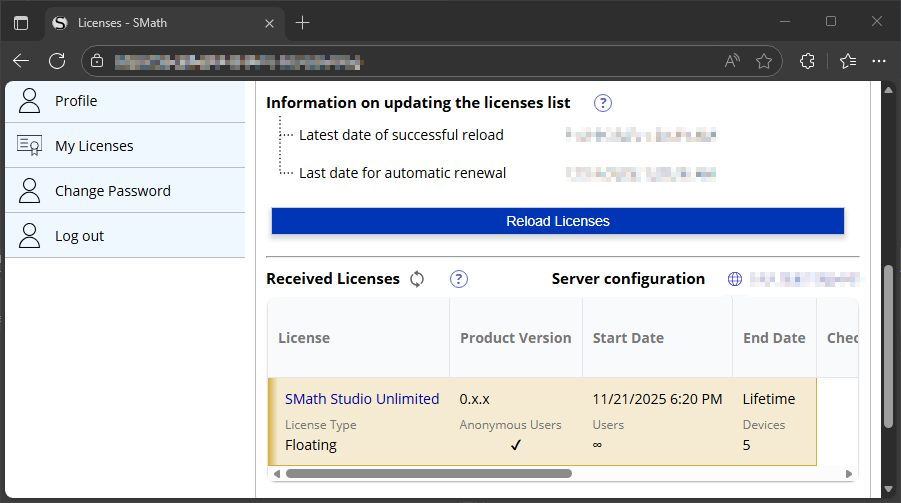
With internet access the server also:
- refreshes license properties automatically, including additional licenses and prolongations — offline this is done by hand;
- notifies users when a new version of SMath Studio is published;
- gives users access to plugins through the Extensions Manager, beta versions included.
If the password of the License Holder account changes on smath.com, enter it here again, or users stop receiving licenses within about 24 hours.
Offline
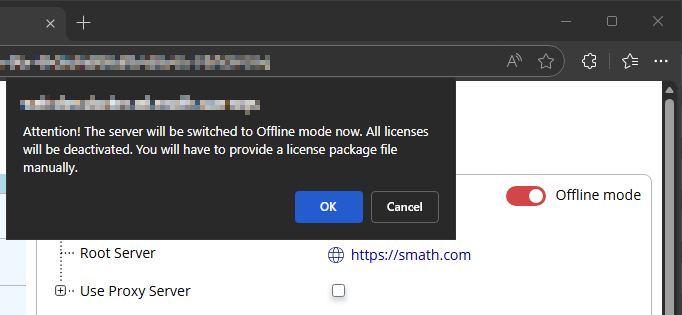
Without internet access, the server works in offline mode. Turn on the Offline mode switch at the top right of the Licenses page and confirm. Licenses already loaded online are released.
The page reloads with the form for an offline license package:
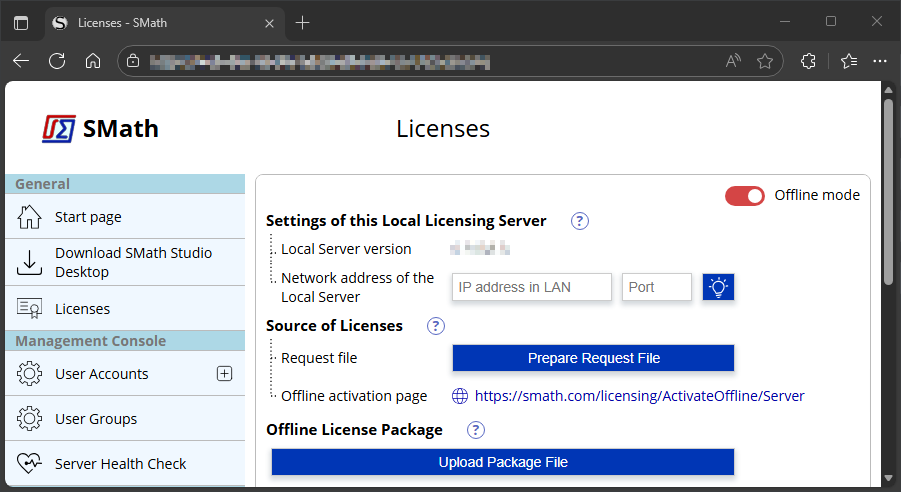
- Enter the network address of the server, as above.
- Click Prepare Request File. It becomes available once the network address is filled in, and again whenever it changes.
- Download the request file with the Download Request File link that replaces the button.
- On any device with internet access, open https://smath.com/en-US/licensing/ActivateOffline/Server and obtain the license package there — see below.
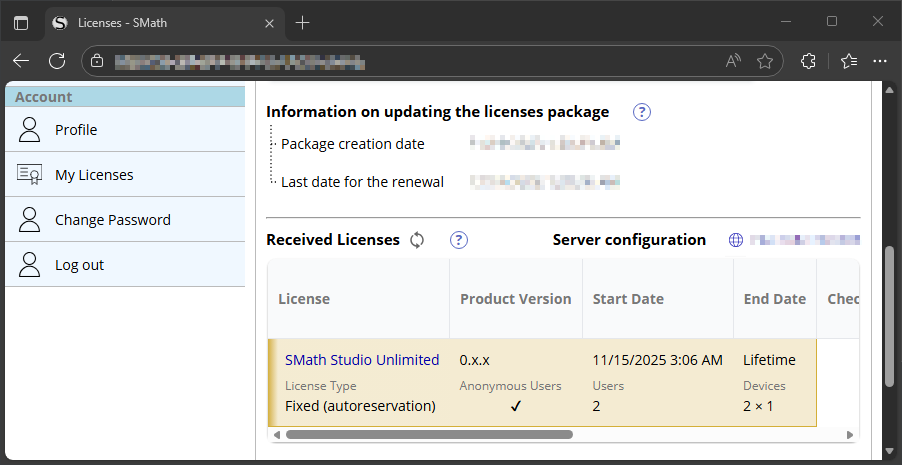
- Back on the server, click Upload Package File and select the downloaded package. The purchased licenses are loaded.
Obtaining the offline package
The offline activation page may ask you to sign in with the data from your electronic license document.
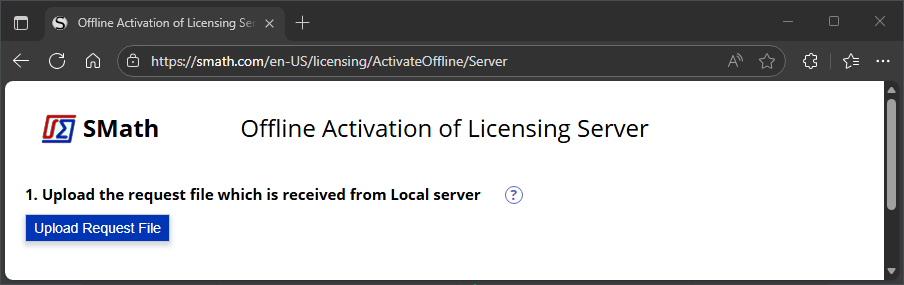
- Click Upload Request File and select the request file from the server.
- The page shows your server's configuration. Select the sublicenses to bind and choose the binding period.
On the first setup of a server, choose the shortest period. An offline reservation cannot be cancelled — the licenses stay bound to this server configuration until the period ends.
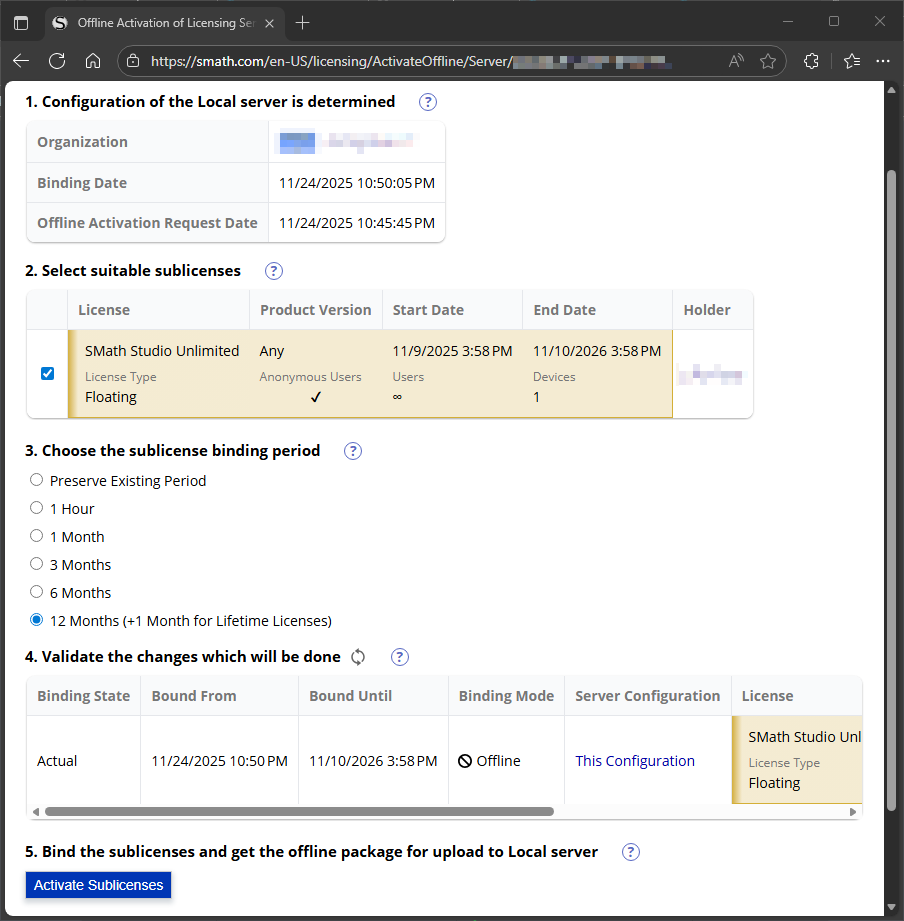
- Check the changes and click Activate Sublicenses.
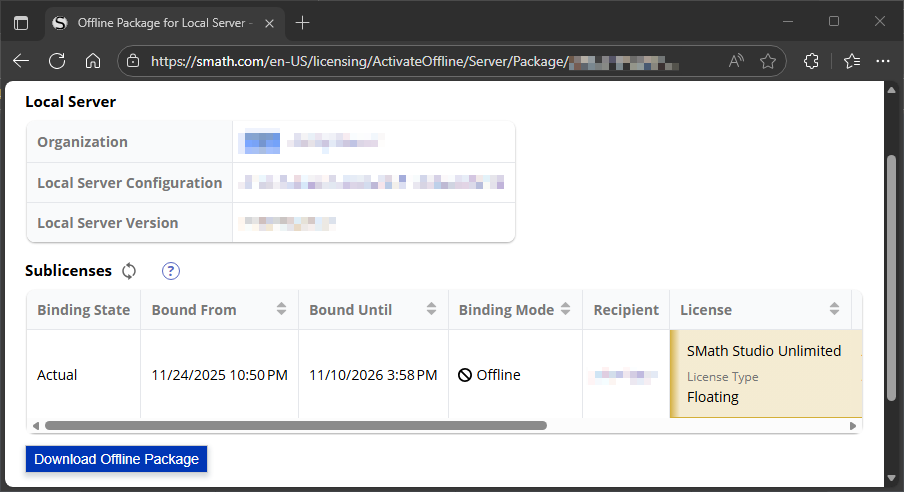
- Click Download Offline Package to get the package for the server.
Renewing the package
An offline package must be renewed every year the server is used: the information about loaded licenses is considered reliable for 13 months after the package is received (12 months of use plus 1 month for the update). Renewal packages for offline use are free of charge.